Build fully custom survey questions with HTML, CSS, and variable capture, a complete guide to what’s allowed, what’s blocked, and how to use it.
How to create custom survey questions with raw HTML and CSS in Choicery.
Custom HTML lets you create free-format survey questions using raw HTML and CSS. Instead of choosing a pre-built question type (like Grid / Likert or Single Choice), you write your own HTML form elements and Choicery automatically captures the responses.
You define form inputs (text fields, radio buttons, sliders, checkboxes, dropdown menus, and more) and then create Variable Definitions that map to the name attributes in your HTML. Choicery reads those named fields when the respondent clicks “Next” and stores the values alongside all other survey data.
If a built-in question type (Single Choice, Multiple Choice, Grid / Likert, Bipolar Scale, Ranking, Text Input, Numeric, Constant Sum, Evaluation) can achieve what you need, prefer the built-in type. It handles validation, accessibility, and data export automatically. Custom HTML is for cases where no built-in type fits your requirements.
Follow these steps to add a Custom HTML question to your survey:
Open the Survey Flow editor for your project.
Add a new item and pick “Custom HTML” from the item palette in the sidebar on the right of the Survey Flow screen (on small screens open it with the Add & Manage button).
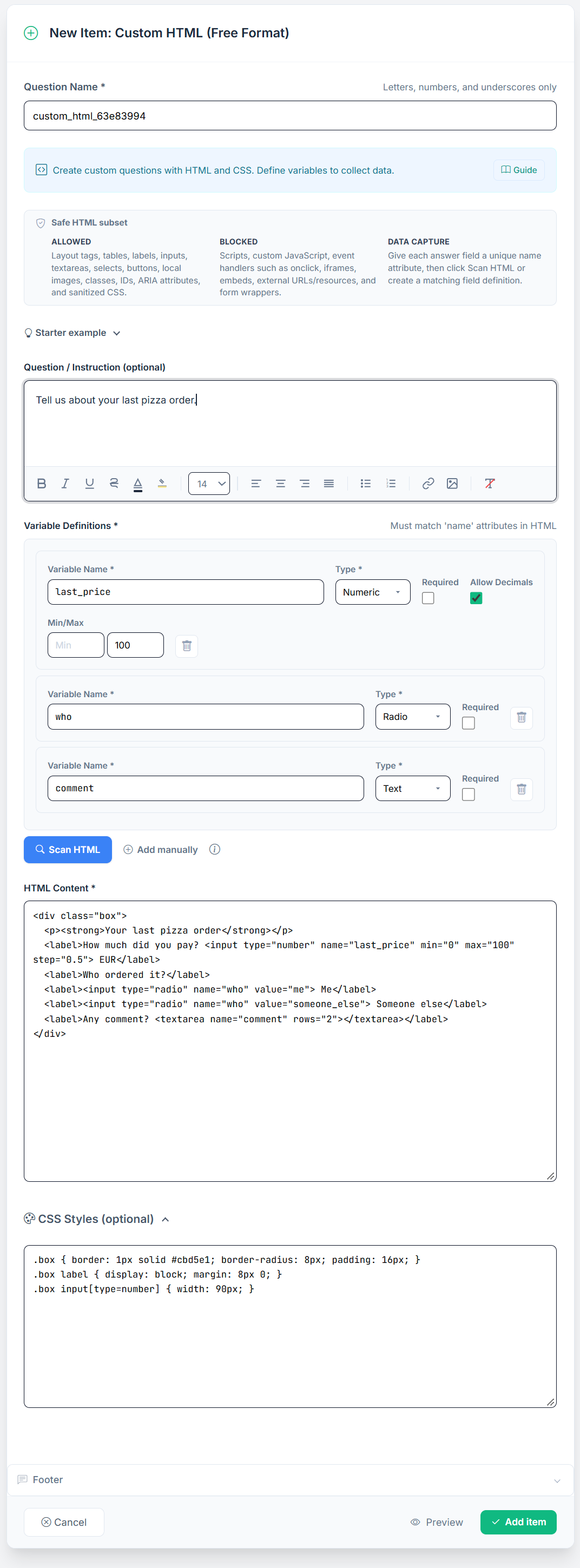
Fill in the editor areas. The Custom HTML editor has four main sections, plus a “Safe HTML subset” summary and a collapsible “Starter example” at the top:
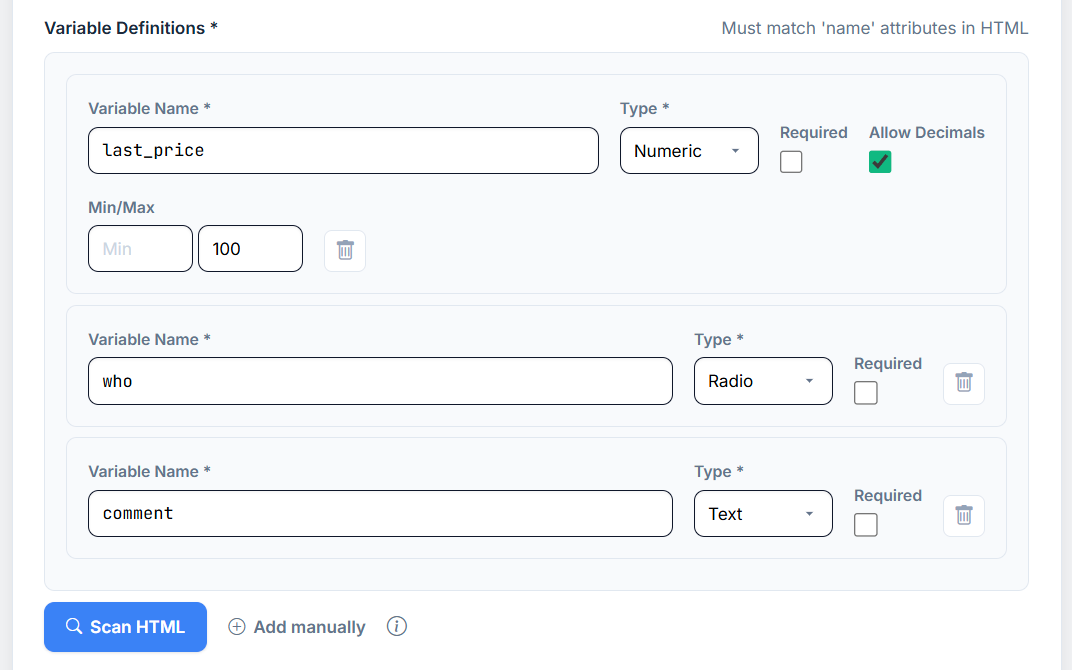
Click “Scan HTML” to auto-detect name attributes from your HTML and fill the Variable Definitions. Next to it, “Add manually” adds an empty variable row, which is only needed if you want to declare a variable before writing its HTML.
Use the preview button at the bottom of the item editor, next to Cancel and Add item (Save changes when editing an existing item), to verify how your HTML renders inside the survey frame before publishing. It is labelled “Preview” in both the add and the edit view. The preview opens in its own tab (repeated clicks refresh that same tab) and runs your HTML and CSS through the actual server-side sanitization pipeline without saving the item, so what you see is what respondents will see.
Shows: the preview tab with the custom question rendered as a respondent sees it, next to (or below) the editor footer where the Preview button sits.
Where in Choicery: Project → Survey → Custom HTML item → Preview (bottom of the editor).
Save as: images/custom_html/live_preview.png
Write your HTML first, including all <input>, <select>, and <textarea> elements with name attributes. Then click “Scan HTML” to auto-create variable definitions. This saves time and avoids typos.
Variable Definitions tell Choicery which form fields to capture from your HTML. Each variable maps to a name attribute on an HTML input element.
| Property | Description | Example |
|---|---|---|
| Name | Must exactly match a name attribute in your HTML. Becomes the column header in CSV export. Must start with a letter and may contain only letters, digits and underscores, maximum 50 characters. It must be unique across the whole survey (case-insensitive) and must not collide with page-timing names (page1, time_page1), reserved system columns such as participant_id or status, or the survey form’s own field names (action, attempt, csrf_token, numeric_value, page_index). |
feedback |
| Type | The type dropdown offers exactly four options: Text, Numeric, Radio, and Checkbox. Other inputs (a <select>, a hidden field) are still captured, just classify them as Text (or Numeric for numbers). The type also decides how the value is read: Radio stores the value of the checked button, Checkbox stores all checked values joined by commas, everything else stores the field’s value. A <select multiple> stores only the first selected option; use a checkbox group when several answers are possible. Give every checkbox a value, otherwise the stored value is on. |
radio |
| Required | Checkbox controlling whether the respondent must provide a value before proceeding. | On / Off |
| Allow Decimals | Appears only for the Numeric type. When it is off, a non-integer answer is rejected with the project’s whole-number message (by default “Decimal numbers are not allowed. Please enter a whole number for …”, naming the variable). Which decimal separator respondents may type follows the project’s decimal separator setting. | On / Off |
| Min/Max | Appears only for the Numeric type. Two optional bounds; values outside them are rejected when the respondent continues. | 0 / 100 |
When you click the “Scan HTML” button, Choicery parses your HTML Content field and finds every <input>, <textarea> and <select> element that carries a name attribute (hidden inputs included). For each unique name found, it creates a variable definition with the type inferred from the element: type="number" and type="range" become Numeric, type="radio" becomes Radio, type="checkbox" becomes Checkbox, and everything else becomes Text.
Attributes in the markup are carried over: required switches Required on, min and max fill Min/Max, and a step of any or a fractional step switches Allow Decimals on. Scanning replaces the current list rather than merging into it. Settings you made by hand are kept only where the markup does not state a value; names that no longer appear in the HTML disappear from the list. After a scan a message lists how many variables were synced, which are new, which disappeared and how many are required. If two fields share a name (other than a radio or checkbox group), you get a warning, because only one field per name is captured. If the scan finds nothing at all, the list is cleared and you get the warning “No variables found in HTML content. Variable definitions were cleared.”
If you try to save with no variable definitions, a warning dialog (“No variables defined”) offers “Save anyway” or “Back to editor”. If you save anyway, the server runs the same detection on your HTML and stores the variables it finds, all with Required off. Relying on that fallback is not recommended, because you then have no control over the Required flag or the numeric bounds.
The data is collected via postMessage between a sandboxed iframe (which renders your HTML) and the parent survey form. When the respondent clicks “Next”, the parent frame sends a message to the iframe requesting all named field values. The iframe collects them and sends them back. Choicery then stores each value keyed by the variable name.
If the name attribute in your HTML is quality_rating but your variable definition says quality-rating, no data will be captured for that field. Use “Scan HTML” to avoid mismatches.
Custom HTML is rendered inside a sandboxed iframe for security. To protect respondents and the survey platform, Choicery applies a strict sanitization pipeline to all user-submitted HTML and CSS. This section is your definitive reference.
All HTML and CSS is sanitized server-side before storage. There is no way to bypass these rules. Content that violates the rules is silently stripped: your question will render, but the blocked elements will be missing.
The following elements and attributes are completely stripped from your HTML during sanitization:
| What | Details |
|---|---|
| JavaScript | No <script> tags. A legacy js_content config key is silently removed on save (not exposed in the editor). Any existing JavaScript is not executed. |
| Dangerous tags | <script>, <iframe>, <object>, <embed> are stripped entirely. |
<form> wrappers |
The <form> tag itself is removed (unwrapped), but inner fields (<input>, <select>, etc.) are preserved. |
| Event handlers | onclick, onchange, onload, onerror, onmouseover, and all on* attributes are removed. |
| External resources | src, href, action, formaction, poster, data attributes pointing to http://, https://, //, javascript:, or vbscript: URLs are blocked. |
CSS is sanitized separately. The following rules apply to the CSS Styles field. <style> blocks pasted into HTML Content survive sanitization but are blocked by the survey page’s Content Security Policy, so they have no effect. Always use the CSS Styles field.
| Rule | Details |
|---|---|
| Max CSS length | 12,000 characters for the CSS Styles field. Anything above the limit is silently truncated, not rejected. |
@import |
Removed entirely. |
External url() |
url(http://...), url(https://...), url(//...) are removed. |
url(javascript:...) |
Removed. |
expression(...) |
Removed (legacy IE attack vector). |
< and > characters |
Stripped from all CSS. This includes the CSS child combinator: write .parent .child (descendant) or use ~ / + (sibling) instead of .parent > .child. |
style vs. the CSS fieldInline style="…" attributes do not work. The sanitizer keeps a few harmless properties, but the survey page runs under a strict Content Security Policy that the sandboxed frame inherits, and the browser refuses every style attribute regardless of its content. Put all CSS, structural or cosmetic, in the CSS Styles field and address elements by class or id.
The following tags pass through sanitization and will render in the survey:
div, span, p, br, hr, small, section, article, header, footer, main, aside
strong, em, b, i, u, h1, h2, h3, h4, h5, h6
ul, ol, li
table, thead, tbody, tfoot, tr, th, td
label, input, textarea, select, option, optgroup, button, fieldset, legend
details, summary
img (images uploaded to Choicery, referenced by their relative /images/... path), a (relative or mailto: links pass sanitization, but the sandboxed frame blocks new tabs and top-level navigation, so links are not usable for respondents; treat the question as a closed page)
Each HTML tag may only carry the global attributes plus the attributes listed for that tag. Any unlisted attribute is silently stripped. Tags that do not appear in the table (div, span, table, tr, fieldset, legend, details, summary and the rest) accept the global attributes only.
| Scope | Allowed Attributes |
|---|---|
| Global (all tags) | class, id, style (kept by the sanitizer but ignored by the browser in the survey, see Section 4.2), title, role, aria-label, aria-labelledby, aria-describedby, data-* |
| Input | type, name, id, value, placeholder, min, max, step, inputmode, maxlength, minlength, checked, disabled, readonly, required, pattern, autocomplete, size |
| Textarea | name, id, rows, cols, placeholder, maxlength, minlength, disabled, readonly, required |
| Select | name, id, multiple, size, disabled, required |
| Option | value, selected, disabled |
| Optgroup | label, disabled |
| Label | for |
| Button | type, disabled |
Link (<a>) |
href (relative or mailto only; links do not open inside the sandboxed frame), target, rel |
Image (<img>) |
src (relative path only; data: and external URLs are removed), alt, width, height |
Table cells (<th>, <td>) |
colspan, rowspan |
data-* attributesAll data-* attributes are allowed on any tag. These are commonly used for storing custom metadata (e.g., data-question-id="q1") and are safe because they do not affect rendering or trigger code execution.
Below are three small examples showing the basic Custom HTML pattern. Each includes the HTML you would paste into the editor and the corresponding variable definition. For complete, ready-to-use research instruments (risk elicitation, time preference, star rating, NPS, slider grids), see Section 6.
A single text field asking for open-ended feedback.
<label for="feedback">Your feedback:</label>
<input type="text" name="feedback" id="feedback" placeholder="Type here...">feedbacktextThe name="feedback" attribute on the input must exactly match the variable name. When the respondent types “Great product!” and clicks Next, the value Great product! is stored under the column feedback.
A table-based rating matrix with radio buttons, the kind of question that goes beyond what the built-in Grid / Likert item offers (e.g., custom column labels or mixed scales per row).
<table>
  <tr>
    <th>Aspect</th>
    <th>1</th><th>2</th><th>3</th><th>4</th><th>5</th>
  </tr>
  <tr>
    <td>Quality</td>
    <td><input type="radio" name="quality" value="1"></td>
    <td><input type="radio" name="quality" value="2"></td>
    <td><input type="radio" name="quality" value="3"></td>
    <td><input type="radio" name="quality" value="4"></td>
    <td><input type="radio" name="quality" value="5"></td>
  </tr>
  <tr>
    <td>Design</td>
    <td><input type="radio" name="design" value="1"></td>
    <td><input type="radio" name="design" value="2"></td>
    <td><input type="radio" name="design" value="3"></td>
    <td><input type="radio" name="design" value="4"></td>
    <td><input type="radio" name="design" value="5"></td>
  </tr>
</table>quality, Type: radiodesign, Type: radioEach row uses a different name, so each row produces a separate variable. The value attribute (1-5) determines what gets stored.
An HTML5 range slider for capturing a numeric value on a continuous scale.
<label>How likely? <span id="val">50</span>%</label>
<input type="range" name="likelihood" min="0" max="100" value="50">likelihoodnumeric (a range input is captured as a number)The <span id="val">50</span> above would normally update dynamically via JavaScript as the slider moves. Since JavaScript is blocked, the span will always show “50” regardless of the slider position. The captured value will still be correct; only the visual label will not update. Consider using plain text labels like “0 = Not at all likely” and “100 = Extremely likely” instead.
The recipes below are complete, ready-to-paste instruments that are common in academic and commercial research. Each one shows a live preview first, then the full HTML and CSS (click to expand) and the Variable Definitions to create. All of them work entirely without JavaScript.
Star ratings, NPS scales and slider ratings also exist as built-in response types inside the Evaluation item, but there they are tied to a product list and collect one score per product. Use the Custom HTML recipes when you need the same widget as a standalone question, or with your own labels and layout.
> child combinator in CSSThe CSS sanitizer strips every < and > character, which includes the CSS child combinator (.parent > .child). Use a descendant selector (.parent .child) or a sibling combinator (~, +) instead. Every recipe below already follows this rule.
Paste the HTML block into the HTML Content field and the CSS block into the CSS Styles field. Inside the survey your content sits alone in a sandboxed iframe, so plain element selectors such as table or label are safe; they cannot affect anything else. (The live previews on this page use scoped class selectors only, so they do not restyle the tutorial itself.)
A multiple price list (MPL) measures risk attitude. Each row pits a fixed 50/50 lottery (column 1) against a sure payment (column 2) that grows row by row. The row where the respondent switches from the lottery to the sure payment reveals their certainty equivalent, and therefore their degree of risk aversion. This is the certainty-equivalent variant of the Holt and Laury (2002) design, shown here with the full 14 rows.
Every row is its own radio group (HL_No0 through HL_No13), so every row becomes one variable. Value 1 means the respondent chose the lottery on that row; value 2 means the sure payment.
| No. | (1) Risky payoff | (2) Sure payoff |
|---|---|---|
| 1 | €0 with 50%;€12 with 50% | €0 |
| 2 | €0 with 50%;€12 with 50% | €1 |
| 3 | €0 with 50%;€12 with 50% | €2 |
| 4 | €0 with 50%;€12 with 50% | €3 |
| 5 | €0 with 50%;€12 with 50% | €4 |
| 6 | €0 with 50%;€12 with 50% | €5 |
| 7 | €0 with 50%;€12 with 50% | €5.50 |
| 8 | €0 with 50%;€12 with 50% | €6 |
| 9 | €0 with 50%;€12 with 50% | €6.50 |
| 10 | €0 with 50%;€12 with 50% | €7 |
| 11 | €0 with 50%;€12 with 50% | €8 |
| 12 | €0 with 50%;€12 with 50% | €9 |
| 13 | €0 with 50%;€12 with 50% | €10 |
| 14 | €0 with 50%;€12 with 50% | €11 |
<table>
  <tr>
    <th>No.</th>
    <th>(1) Risky payoff</th>
    <th>(2) Sure payoff</th>
  </tr>
  <tr>
    <td>1</td>
    <td><div class="option-container"><span class="keep-together">€0 with 50%;</span><span class="keep-together">€12 with 50%</span><span class="no-wrap"><input type="radio" name="HL_No0" value="1"></span></div></td>
    <td><div class="option-container"><span class="no-wrap"><input type="radio" name="HL_No0" value="2"></span><span class="fixed-width">€0</span></div></td>
  </tr>
  <tr>
    <td>2</td>
    <td><div class="option-container"><span class="keep-together">€0 with 50%;</span><span class="keep-together">€12 with 50%</span><span class="no-wrap"><input type="radio" name="HL_No1" value="1"></span></div></td>
    <td><div class="option-container"><span class="no-wrap"><input type="radio" name="HL_No1" value="2"></span><span class="fixed-width">€1</span></div></td>
  </tr>
  <tr>
    <td>3</td>
    <td><div class="option-container"><span class="keep-together">€0 with 50%;</span><span class="keep-together">€12 with 50%</span><span class="no-wrap"><input type="radio" name="HL_No2" value="1"></span></div></td>
    <td><div class="option-container"><span class="no-wrap"><input type="radio" name="HL_No2" value="2"></span><span class="fixed-width">€2</span></div></td>
  </tr>
  <!-- Rows 4 to 14 follow the same pattern: increment the name
       (HL_No3 ... HL_No13) and raise the sure payoff to
       €3, €4, €5, €5.50, €6, €6.50, €7, €8, €9, €10, €11. -->
</table>th, td { font-family: 'Calibri', sans-serif; padding: 8px; text-align: center; }
table { border-collapse: collapse; margin-left: auto; margin-right: auto; }
th { border-bottom: 1px solid black; text-align: left; padding-left: 15px; }
th:nth-child(2), th:nth-child(3), td:nth-child(2), td:nth-child(3) { width: 180px; }
tr:nth-child(even) { background-color: #fbfbfb; }
.option-container { display: flex; justify-content: flex-start; align-items: center; }
.option-container span { margin-left: 5px; }
.no-wrap, .keep-together { white-space: nowrap; }
.fixed-width { min-width: 50px; display: inline-block; text-align: left; }radio. Required: On. Each stores 1 (lottery) or 2 (sure payment).Spreadsheet-style MPL templates (for example from conjoint exchange format) often ship a <script> that, once the respondent picks a switching row, auto-completes the consistent rows above and below. Choicery strips all <script> tags, so respondents answer each row individually. The captured data is identical (one value per row); enforce a single switching point during analysis, or simply count the number of safe choices per respondent.
The same MPL structure measures time discounting. Column 1 pays a fixed amount today; column 2 pays a growing amount in 6 months. The switching row reveals the respondent’s discount rate. This recipe reuses the exact CSS from Recipe 6.1, only the table contents change.
| No. | (1) Today | (2) In 6 months |
|---|---|---|
| 1 | ||
| 2 | ||
| 3 | ||
| 4 | ||
| 5 | ||
| 6 | ||
| 7 | ||
| 8 | ||
| 9 | ||
| 10 |
<table>
  <tr>
    <th>No.</th>
    <th>(1) Today</th>
    <th>(2) In 6 months</th>
  </tr>
  <tr><td>1</td><td><label><input type="radio" name="TD_1" value="1"> €50 today</label></td><td><label><input type="radio" name="TD_1" value="2"> €50 in 6 months</label></td></tr>
  <tr><td>2</td><td><label><input type="radio" name="TD_2" value="1"> €50 today</label></td><td><label><input type="radio" name="TD_2" value="2"> €52 in 6 months</label></td></tr>
  <tr><td>3</td><td><label><input type="radio" name="TD_3" value="1"> €50 today</label></td><td><label><input type="radio" name="TD_3" value="2"> €54 in 6 months</label></td></tr>
  <tr><td>4</td><td><label><input type="radio" name="TD_4" value="1"> €50 today</label></td><td><label><input type="radio" name="TD_4" value="2"> €56 in 6 months</label></td></tr>
  <tr><td>5</td><td><label><input type="radio" name="TD_5" value="1"> €50 today</label></td><td><label><input type="radio" name="TD_5" value="2"> €58 in 6 months</label></td></tr>
  <tr><td>6</td><td><label><input type="radio" name="TD_6" value="1"> €50 today</label></td><td><label><input type="radio" name="TD_6" value="2"> €60 in 6 months</label></td></tr>
  <tr><td>7</td><td><label><input type="radio" name="TD_7" value="1"> €50 today</label></td><td><label><input type="radio" name="TD_7" value="2"> €62 in 6 months</label></td></tr>
  <tr><td>8</td><td><label><input type="radio" name="TD_8" value="1"> €50 today</label></td><td><label><input type="radio" name="TD_8" value="2"> €64 in 6 months</label></td></tr>
  <tr><td>9</td><td><label><input type="radio" name="TD_9" value="1"> €50 today</label></td><td><label><input type="radio" name="TD_9" value="2"> €66 in 6 months</label></td></tr>
  <tr><td>10</td><td><label><input type="radio" name="TD_10" value="1"> €50 today</label></td><td><label><input type="radio" name="TD_10" value="2"> €68 in 6 months</label></td></tr>
</table>
CSS: paste the same block as Recipe 6.1 into this item’s CSS Styles field.
radio. Required: On. Each stores 1 (today) or 2 (in 6 months).A five-star rating widget built only from radio buttons and CSS. The classic trick: list the stars in reverse order (5 down to 1) and use the general sibling combinator (~) to light up the chosen star and every star before it. No JavaScript is needed for the hover and selection highlight, try it in the preview below.
<fieldset class="stars">
  <legend>How satisfied are you?</legend>
  <input type="radio" name="satisfaction" value="5" id="st5"><label for="st5">★</label>
  <input type="radio" name="satisfaction" value="4" id="st4"><label for="st4">★</label>
  <input type="radio" name="satisfaction" value="3" id="st3"><label for="st3">★</label>
  <input type="radio" name="satisfaction" value="2" id="st2"><label for="st2">★</label>
  <input type="radio" name="satisfaction" value="1" id="st1"><label for="st1">★</label>
</fieldset>.stars { border: none; display: inline-flex; flex-direction: row-reverse; }
.stars input { position: absolute; opacity: 0; width: 0; height: 0; }
.stars label { font-size: 34px; color: #d1d5db; cursor: pointer; padding: 0 3px; }
.stars label:hover,
.stars label:hover ~ label { color: #f5b301; }
.stars input:checked ~ label { color: #f5b301; }radio. Required: On. Stores 1 to 5.The radios are hidden with position: absolute; opacity: 0 and the layout uses flex-direction: row-reverse. Inline style="…" attributes are ignored by the browser inside the survey (Section 4.2), so the CSS field is the only place where CSS takes effect.
The standard NPS scale: eleven options from 0 (“not at all likely”) to 10 (“extremely likely”), laid out as a single horizontal row with end anchors. The built-in NPS response type lives inside the Evaluation item and asks for one score per product; this recipe gives you the same strip as a standalone question.
<fieldset class="nps">
  <legend>How likely are you to recommend us to a friend or colleague?</legend>
  <div class="nps-row">
    <label><input type="radio" name="nps" value="0"><span>0</span></label>
    <label><input type="radio" name="nps" value="1"><span>1</span></label>
    <label><input type="radio" name="nps" value="2"><span>2</span></label>
    <label><input type="radio" name="nps" value="3"><span>3</span></label>
    <label><input type="radio" name="nps" value="4"><span>4</span></label>
    <label><input type="radio" name="nps" value="5"><span>5</span></label>
    <label><input type="radio" name="nps" value="6"><span>6</span></label>
    <label><input type="radio" name="nps" value="7"><span>7</span></label>
    <label><input type="radio" name="nps" value="8"><span>8</span></label>
    <label><input type="radio" name="nps" value="9"><span>9</span></label>
    <label><input type="radio" name="nps" value="10"><span>10</span></label>
  </div>
  <div class="nps-anchors">
    <span>Not at all likely</span>
    <span>Extremely likely</span>
  </div>
</fieldset>.nps { border: none; padding: 0; }
.nps-row { display: flex; gap: 6px; }
.nps-row label { flex: 1; }
.nps-row input { position: absolute; opacity: 0; }
.nps-row span {
display: block; text-align: center; padding: 12px 0;
border: 1.5px solid #94a3b8; border-radius: 6px; cursor: pointer;
}
.nps-row input:checked + span { background: #0f766e; color: #fff; border-color: #0f766e; }
.nps-anchors { display: flex; justify-content: space-between; margin-top: 6px; font-size: 13px; color: #64748b; }radio. Required: On. Stores 0 to 10.Several continuous 0-to-100 sliders for rating multiple items on one screen, a visual analog scale (VAS) grid. The built-in Numeric item is a single text box, and the Evaluation item’s Slider Rating is bound to a product list, so a free-standing multi-slider grid is a Custom HTML job.
<div class="vas">
  <div class="vas-row">
    <label for="v_comfort">Comfort</label>
    <input type="range" name="vas_comfort" id="v_comfort" min="0" max="100" value="50">
  </div>
  <div class="vas-row">
    <label for="v_style">Style</label>
    <input type="range" name="vas_style" id="v_style" min="0" max="100" value="50">
  </div>
  <div class="vas-row">
    <label for="v_value">Value for money</label>
    <input type="range" name="vas_value" id="v_value" min="0" max="100" value="50">
  </div>
  <div class="vas-anchors"><span>0 = Poor</span><span>100 = Excellent</span></div>
</div>.vas-row { display: flex; align-items: center; gap: 14px; margin: 10px 0; }
.vas-row label { flex: 0 0 130px; }
.vas-row input[type="range"] { flex: 1; }
.vas-anchors { display: flex; justify-content: space-between; font-size: 13px; color: #64748b; }numeric. Required: On. Each stores 0 to 100.A slider that shows its current number as you drag needs JavaScript, which is stripped. Use fixed end anchors (“0 = Poor”, “100 = Excellent”) instead of a live value. The captured number is exact regardless of the missing readout.
Always preview your Custom HTML question in the editor before sending the survey to respondents. The preview renders your HTML through the same sanitization pipeline, so you will see exactly what respondents see.
After writing your HTML, click “Scan HTML” to automatically generate variable definitions. This ensures the variable names match exactly and prevents data loss from typos.
Inline style="…" attributes have no effect in the survey, and <style> blocks in the HTML are blocked as well. Put every rule in the CSS Styles field and keep it under 12,000 characters.
Wrap inputs with <label> elements and use for attributes that reference input id values. This improves accessibility and makes radio buttons / checkboxes clickable by their label text.
The sanitizer drops any src or href that starts with http://, https:// or //, and it also drops data: URIs. Upload the image to Choicery first (Survey editor, image picker) and reference its /images/... path. Check it in the preview before you rely on it.
All <script> tags and on* event handlers are removed. If your question design requires dynamic behavior (show/hide logic, calculated fields), consider using built-in question types with Display Logic instead. For interactive widgets that do not strictly need JavaScript (star ratings, highlighted selections), pure CSS often suffices, see Section 6.
<form> tagsChoicery wraps your content in its own data-collection mechanism. Any <form> tags you include will be unwrapped (removed but inner content preserved). Do not rely on form submission, action attributes, or form-level validation.
name attributes (except for radio and checkbox groups)Each name attribute should be unique across your HTML, with two exceptions: radio buttons in one group share a name (the checked value is stored), and checkboxes in one group may share a name (all checked values are stored, joined by commas). For any other input type, sharing a name means only the first field is read.
Understanding how Custom HTML is rendered and how data flows from the respondent’s browser to Choicery’s database helps you debug issues and design reliable questions.
Your Custom HTML content is rendered inside a sandboxed iframe. The iframe uses the sandbox="allow-scripts" attribute, which is required for the postMessage data collection mechanism. The sandbox prevents the iframe from accessing the parent page’s DOM, cookies, or storage, but the allow-scripts permission lets the built-in Choicery data-collection script run inside the iframe.
The sandbox isolates your custom HTML from the survey framework. Even if malicious content somehow passed sanitization, the sandbox prevents it from accessing survey data, cookies, or the parent page. This is a defense-in-depth measure.
Respondent fills in your form fields (text inputs, radio buttons, sliders, etc.) within the iframe.
Respondent clicks “Next” on the survey page. The parent frame sends a postMessage to the iframe requesting form data.
The iframe collects all named input values by iterating over the variable definitions and reading the current value of each matching name. Radio variables yield the value of the checked button, checkbox variables yield every checked value joined by commas, all other variables yield the first matching field’s value. A variable whose name does not exist in the HTML yields an empty string.
The iframe sends the data back to the parent frame via postMessage as a key-value object.
Choicery validates and stores the data using the Variable Definitions. Required variables must be non-empty, Numeric variables must parse as a number and respect Allow Decimals and the Min/Max bounds. If a check fails, the page stays where it is, the survey’s error message appears, and the offending fields are outlined in red inside the frame; the same checks run again on the server when the page is submitted. Values are stored keyed by the variable name alongside all other survey response data, so each variable becomes its own column in the CSV export.
Two further behaviours are handled by the same message channel. When a respondent returns to a page they already answered, the parent sends the stored values into the iframe and the fields are refilled (radios and checkboxes are re-checked, text and numeric fields get their value back). And the iframe continuously reports its own content height to the parent, which resizes the frame to fit, up to a cap of 2000 pixels. Content taller than that scrolls inside the frame.
Shows: a Custom HTML question as a respondent sees it during the survey, with the frame sized to the content and the Next button below it.
Where in Choicery: open the survey itself and go to the page that contains the Custom HTML item.
Save as: images/custom_html/participant_view.png
Under the hood: sanitization pipeline, character limits, and implementation details.
All Custom HTML content passes through a multi-stage server-side sanitization pipeline before it is stored in the database. This section describes each stage in order.
User submits HTML/CSS in editor. The HTML Content and CSS Styles fields are sent to the server when the item is saved.
_sanitize_item_config() detects that the item type is custom_html and calls sanitize_input(html, InputType.CUSTOM_HTML).
_handle_custom_html() runs the full sanitization chain on the HTML content:
<script>, <iframe>, <object>, <embed> blocks are removed entirely (including their content).<form> tags, The <form> wrapper is removed but all inner content (inputs, labels, etc.) is kept.bleach.clean(), Runs the bleach library with an explicit tag whitelist and attribute whitelist. A custom attr_filter function enforces per-tag attribute rules and blocks external URLs.on* handlers, A regex pass strips any remaining event handler attributes (onclick, onerror, etc.).<style> blocks, Each <style> block found in the HTML is passed through sanitize_custom_css(), but such blocks are ignored by the browser at survey time (see Section 4.2).CSS field sanitized separately. The dedicated CSS Styles field is passed through sanitize_custom_css(), which first strips any stray <style> wrapper, truncates to 12,000 characters, then removes @import, external url() references, javascript: URIs, expression() calls, and all </> characters.
Sanitized content is stored. The cleaned HTML and CSS are saved to the item configuration in survey_flow.json under the keys html_content and css_content. These two key names are canonical. A legacy js_content key (and a bare js key) is dropped from the configuration on every save.
When a respondent reaches the Custom HTML page, the sanitized HTML is rendered inside a sandboxed iframe with sandbox="allow-scripts". The allow-scripts permission is necessary for the Choicery-injected data-collection script (which uses postMessage) to function. User-submitted JavaScript has already been stripped in the sanitization pipeline, so only the Choicery collection script executes.
| Content | Max Length | Notes |
|---|---|---|
| HTML Content | 100,000 characters | Total length of the HTML field, measured before sanitization. Exceeding it makes the save fail with an error rather than truncating. |
| Variables per item | 100 | Saving fails with an error above this. |
| Custom HTML variables per project | 300 | Counted across all Custom HTML items. |
| Answer length per variable | 5,000 characters | Longer input is rejected with an error message naming the variable. |
| CSS Styles field | 12,000 characters | Silently truncated above the limit. |
| Variable Name | 50 characters | Must match a name attribute in your HTML. Must start with a letter and contain only letters, digits and underscores. Must not collide with another variable in the survey, with a page-timing name, or with a reserved system variable. |
This generous limit leaves room for long tables such as multiple price lists with many rows. Inline SVG and data URI images are stripped, so they do not count toward it. Most Custom HTML questions will use far less. If you are approaching this limit, consider whether your content could be simplified.
Choicery Documentation (2026). Custom HTML item type, feature specification and sanitization rules. Internal reference.
Holt, C. A., & Laury, S. K. (2002). Risk aversion and incentive effects. American Economic Review, 92(5), 1644-1655. doi:10.1257/000282802762024700
OWASP Foundation. (2024). XSS Prevention Cheat Sheet. Open Worldwide Application Security Project. Retrieved from https://cheatsheetseries.owasp.org/cheatsheets/Cross-Site_Scripting_Prevention_Cheat_Sheet.html
Mozilla Developer Network. (2025). Window: postMessage() method. MDN Web Docs. Retrieved from https://developer.mozilla.org/en-US/docs/Web/API/Window/postMessage
bleach (Python library). (2024). bleach, An easy safelist-based HTML-sanitizing tool. Retrieved from https://github.com/mozilla/bleach
Note: Mozilla deprecated the bleach library on 23 January 2023 (release 6.0.0) and it no longer receives feature work. It remains widely deployed and reliable for the kind of static, server-side HTML/CSS sanitization Choicery performs on Custom HTML content, where the threat model is well understood and the allowed tag/attribute set is small and explicit.